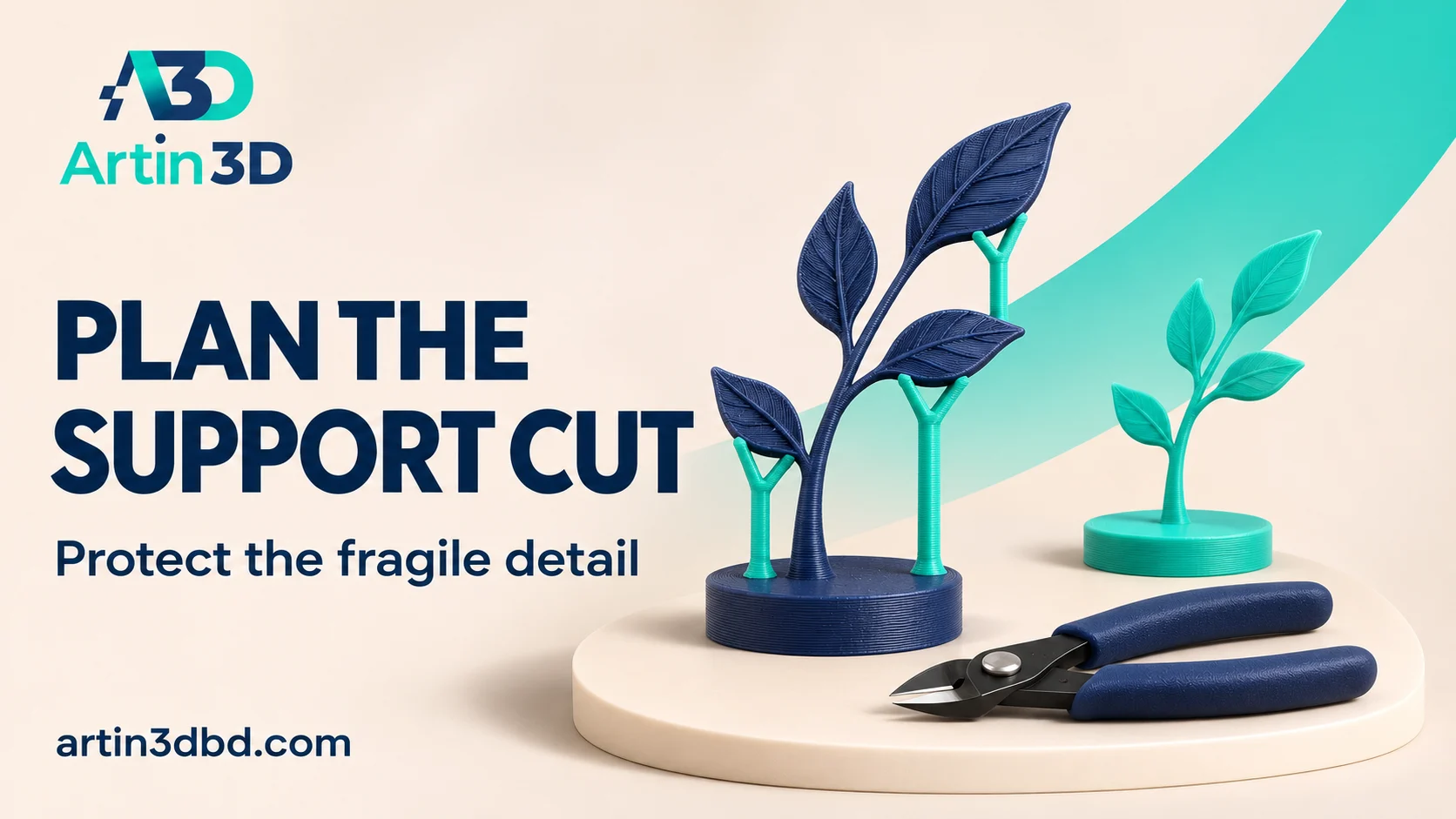
Fragile detail এর পাশের support কাটার আগে cutter ঢোকার জায়গা দেখুন। Small sample এ removal order পরীক্ষা করে original detail অক্ষত আছে কি না যাচাই করুন।
A fine display feature may survive printing but break while its supports are removed. Tool access and the order of cleanup can be part of that problem. A representative sample helps check whether a flush cutter can reach a support connection without pushing on the detail. This guide focuses on controlled plastic support trimming after the print has cooled.
Identify the actual support connection
Inspect the sliced model and mark the support region near the fragile detail. Distinguish the intended model from sacrificial material before the print begins. Save a view showing the connection and the approach available to the tool. A fine antenna, rim or decorative stem can look similar to a support branch in a crowded sample, so identify it clearly in the cleanup record.
For another removal access example, review Check Organic Support Removal Access on a Small Display Arch.
Print a sample preserving the surrounding obstacles
Use a short section with the real detail, its supports and nearby walls. Keep the intended orientation and material profile. An isolated feature can provide much more cutter access than the complete model. Record the tool you plan to use and the approximate approach direction. If there is no practical access route in the model, compare another orientation or assembly split before printing the large piece.
Inspect tool suitability before trimming
The Artin3D Precision Flush Cutter listing describes a tool for filament and plastic support work, with limits on material and section size. Check the actual tool instructions and condition. Wear eye protection when clipping brittle supports and direct fragments away from people. Use a stable approach with fingers clear of the jaws. Do not treat the cutter as a lever for thick material or inaccessible support masses.
Remove accessible material in a controlled order
Allow the sample to cool and photograph it before cleanup. Begin with reachable sacrificial connections that free space for the next step, while keeping force away from the fragile model. Check the detail after each stage. Avoid twisting a large attached support mass to make it break off. If the cutter cannot approach without pressing against the feature, stop and revisit the removal plan.
Record surface condition before further finishing
Photograph the newly exposed detail and note any missing edge, layer damage or remaining support mark. Keep these observations separate from later sanding or painting. Compare the result with the intended viewing distance and geometry requirements. A cosmetically acceptable mark on a hidden face may be unacceptable on the focal detail, so define that criterion before selecting a cleanup approach.
Transfer an approved cleanup route
Save the accepted sample and a short sequence of removal photographs with the project. Reinspect the complete sliced model because its support branches can differ from the small sample. If damage persists, change orientation, support strategy or geometry as a separate trial. A documented removal route is more repeatable than asking another operator to pull the support off carefully without showing where to begin.
To limit support to the areas that need it, see Paint Supports Under a Small Ledge Before Printing a Full Model.
Relevant products from Artin3D
Precision Flush Cutter
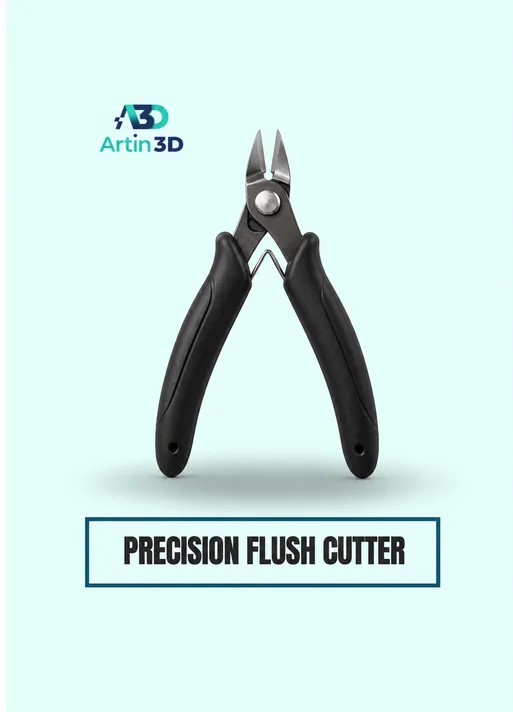
The Precision Flush Cutter is relevant for suitable plastic support connections. Follow its capacity limits and use eye protection during brittle support trimming.
SUNLU PLA Matte Filament 1.75mm
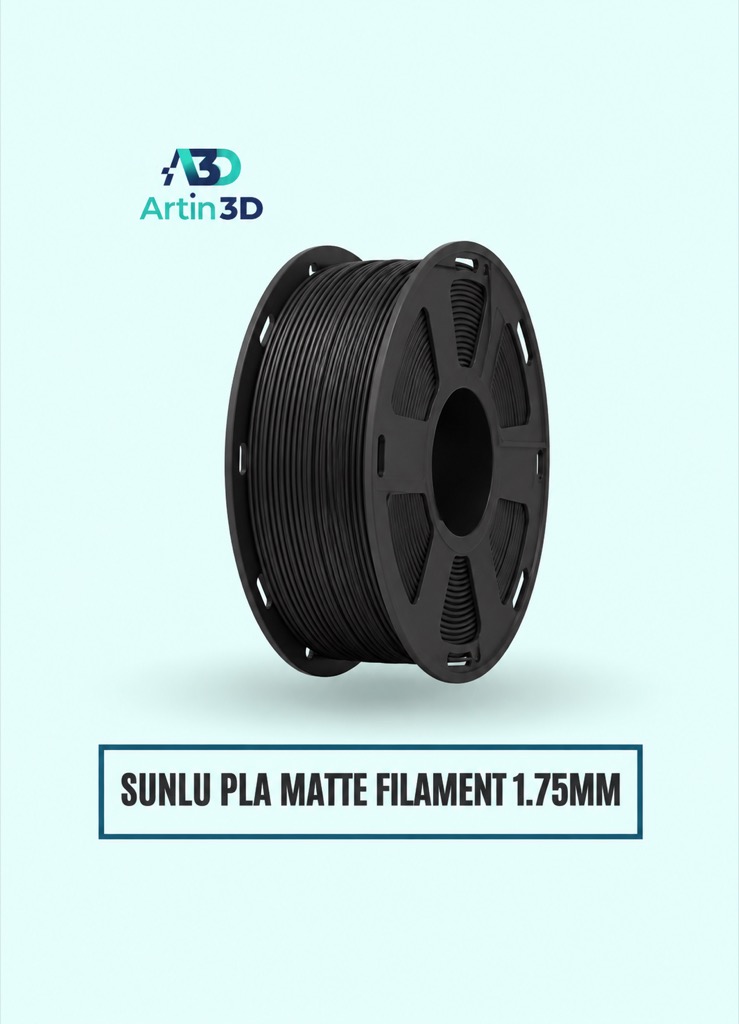
SUNLU PLA Matte can be evaluated for a matte display sample. Keep the exact grade and colour identified when comparing cleanup results.
Quick questions
Can I use the cutter to pry off a thick support mass?
Use the tool within its instructions and capacity. Plan accessible cuts and avoid transferring force into the fragile model.
Does a small isolated detail prove full model access?
Preserve the nearby geometry in the test and inspect the complete support layout again.
Confirm the exact product variant, printer compatibility, current price and availability on the linked product page before ordering.
Need help preparing a representative sample? Explore Artin3D’s 3D design service or upload your STL file for a 3D printing quote. Include the mating part dimensions, intended material and assembly requirements.