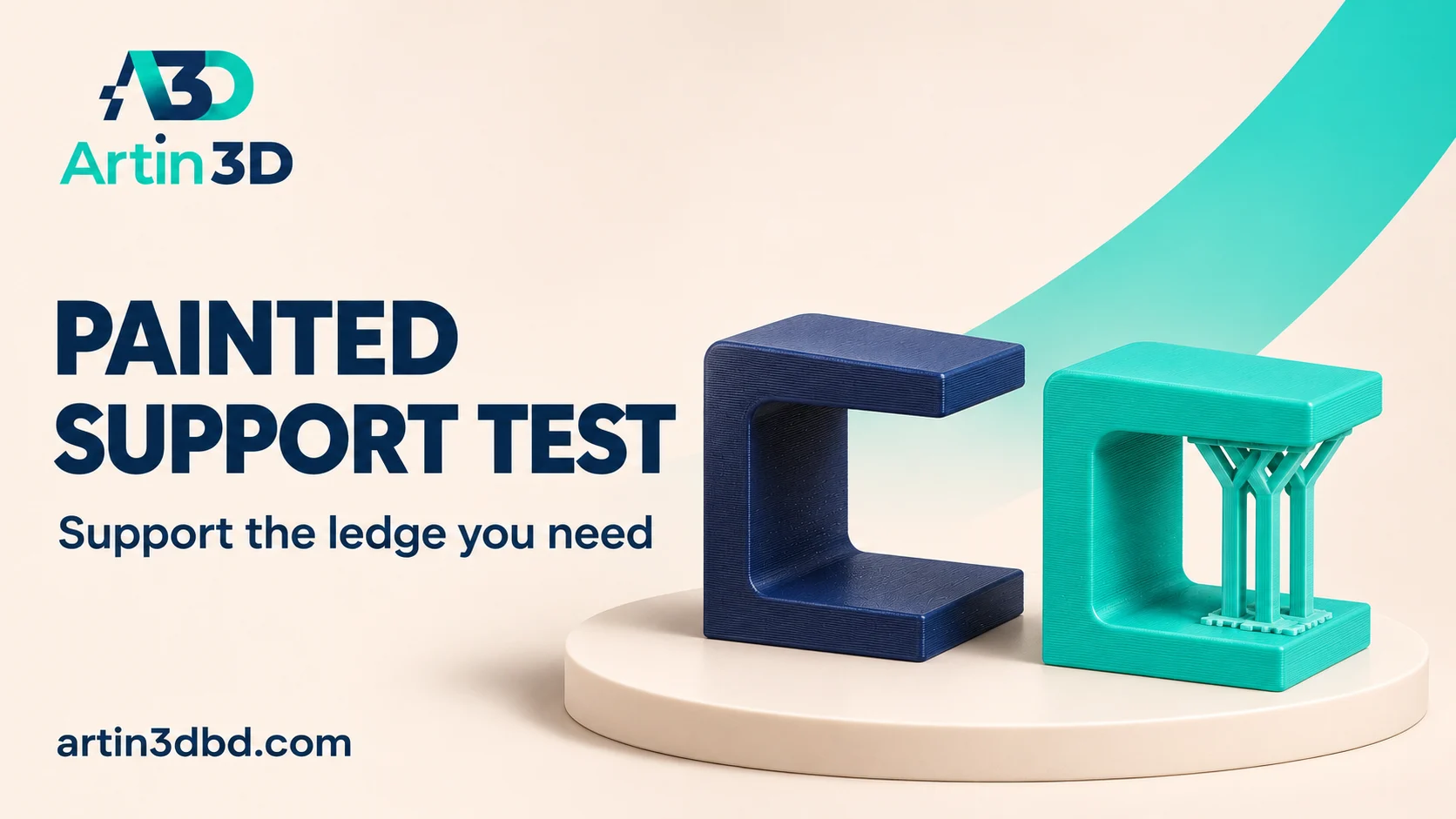
জটিল model এর আগে ছোট ledge এ painted support পরীক্ষা করুন। Support তৈরি হয়েছে কি না এবং সরানোর জায়গা আছে কি না Preview তে দেখুন।
A display model can contain one troublesome ledge while the rest of its geometry prints comfortably. Painting support regions can help investigate that feature without committing to a full model. The useful result is a supported ledge that can also be cleaned without damaging the surrounding detail. This article sets out a small access and finish test using a saved slicer project.
Isolate a representative ledge section
Choose a short sample containing the actual underside angle, edge thickness and nearby wall. Keep the orientation planned for the complete model. Include enough surrounding geometry to reproduce the support access problem. Mark the presentation surface in your project notes. A simplified isolated shelf can give a misleading result if the full model has a wall that blocks removal.
Include the physical cleanup route in the support plan using Check Organic Support Removal Access on a Small Display Arch and Plan Flush Cutter Access Around a Fragile Display Detail.
Enable a support generation mode deliberately
PrusaSlicer lets users paint areas to enforce or block supports. Painting by itself does not enable support generation when the support mode remains set to none. Select a mode suited to the intended test, such as support enforcers only when appropriate. Record that choice with the painted regions. Use the official instructions for your installed slicer version because the available tools and names may differ.
Inspect the generated support through the layers
Slice the sample and follow the support from its starting surface to the ledge. Check that the intended region has actual toolpaths beneath it. Look for support near narrow channels, hidden recesses or surfaces that matter visually. Save views showing the interface and the approach for removal. If support appears somewhere unexpected, inspect the painted selection and the active generation mode before changing other settings.
Print and record the removal process
Use the intended material and a compatible supported profile. Allow the sample to cool and follow the printer and tool instructions during removal. Record where you can reach the support, which feature releases first and whether a tool touches the visible surface. Photograph the underside before any sanding. This separates the quality of the supported print from the effect of later finishing work.
Transfer only a verified support plan
If the ledge meets the appearance and access requirements, apply the same approach to the complete model and inspect every generated support again. The larger model may introduce new obstacles or different support paths. If cleanup is poor, compare another orientation or a revised design sample. Save the accepted painted project and notes so another operator can understand which surfaces must remain accessible.
Measure support cost with the full sample
Record the estimated support material and the cleanup time for the representative ledge. These figures help compare two support plans with similar appearance. Count any sample damaged during removal in the comparison, because usable pieces determine whether the approach is practical.
Relevant products from Artin3D
SUNLU PLA Filament 1.75mm
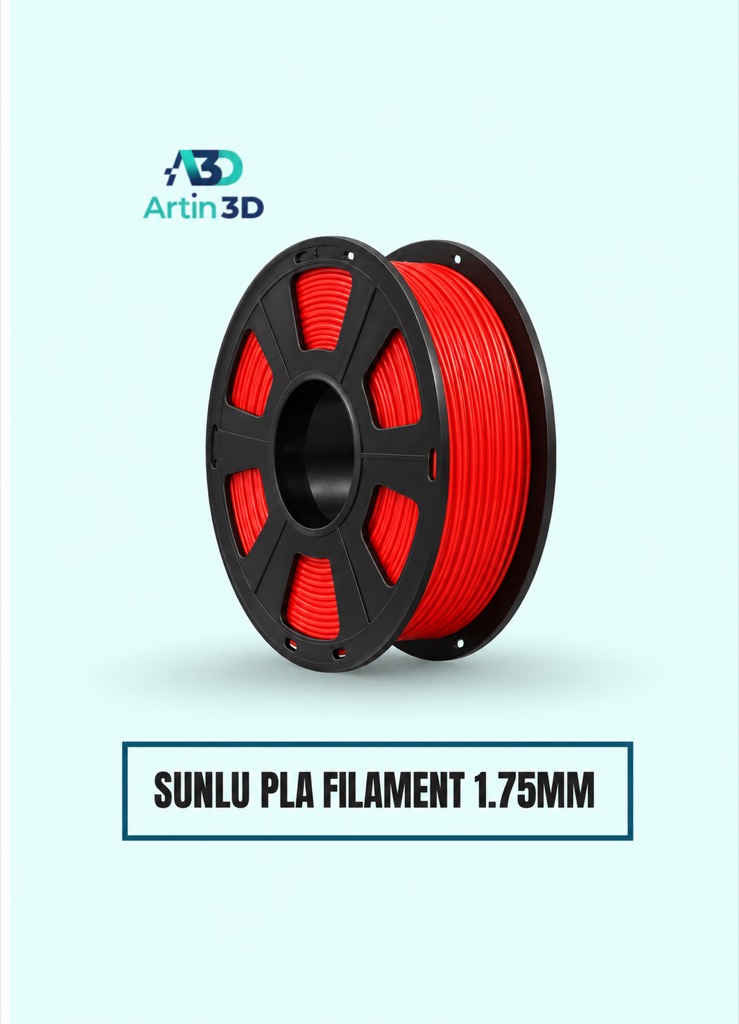
SUNLU PLA is a suitable candidate for a PLA display sample on a compatible machine. Keep its grade and colour consistent throughout the support comparison.
Digital Vernier Caliper
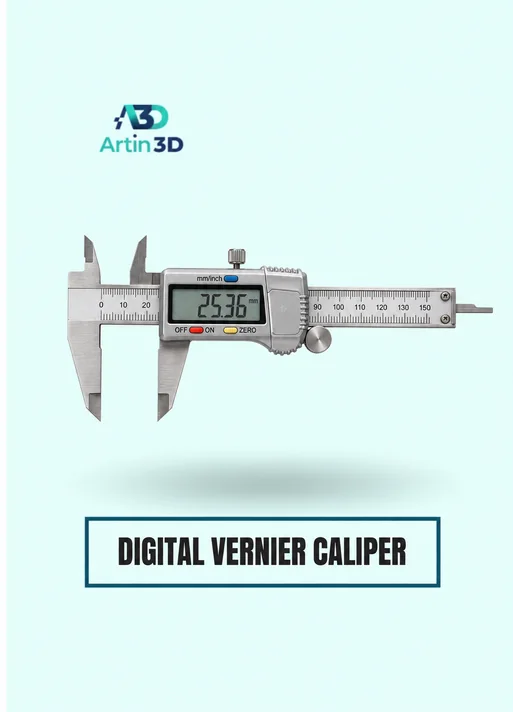
The Digital Vernier Caliper can help compare accessible ledge thicknesses and openings after cleanup. Avoid squeezing fragile details and confirm the instrument accuracy.
Quick questions
Why are there no supports after painting?
Check the active support generation mode and the sliced Preview. A painted region alone does not guarantee generated supports.
Can the small test replace inspecting the full model?
Inspect the complete sliced model too, because its geometry can change support placement and removal access.
Confirm the exact product variant, printer compatibility, current price and availability on the linked product page before ordering.
Need help preparing a representative sample? Explore Artin3D’s 3D design service or upload your STL file for a 3D printing quote. Include the mating dimensions, intended material and acceptance requirements.